

Cette publication est également disponible en :
 Français (French)
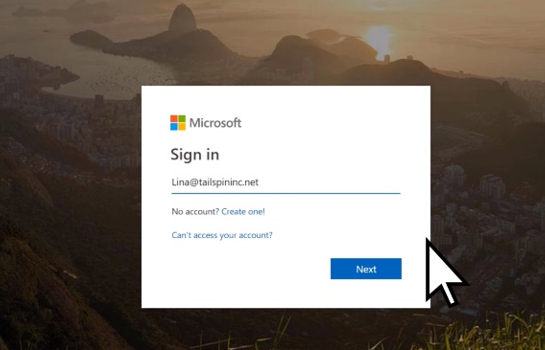
1. When you log on to Office 365 for the first time (or visit http://aka.ms/mfasetup)
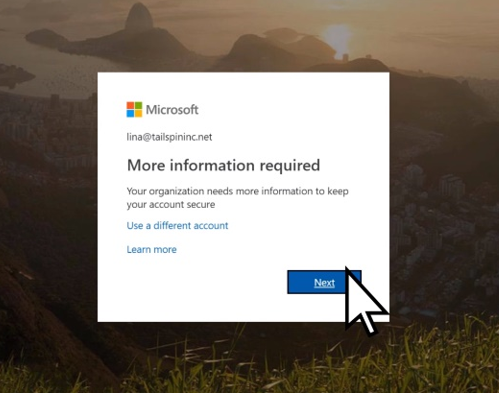
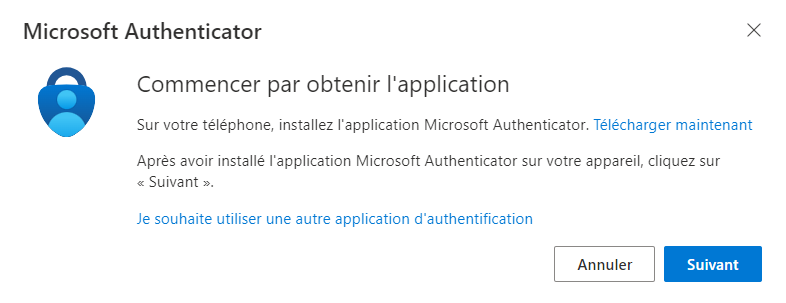
2. Launch the installation procedure by selecting Mobile App
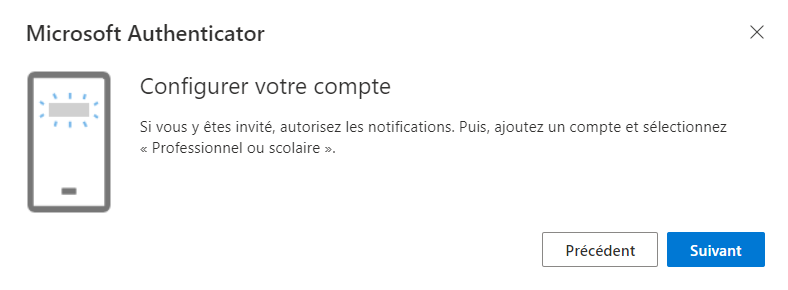
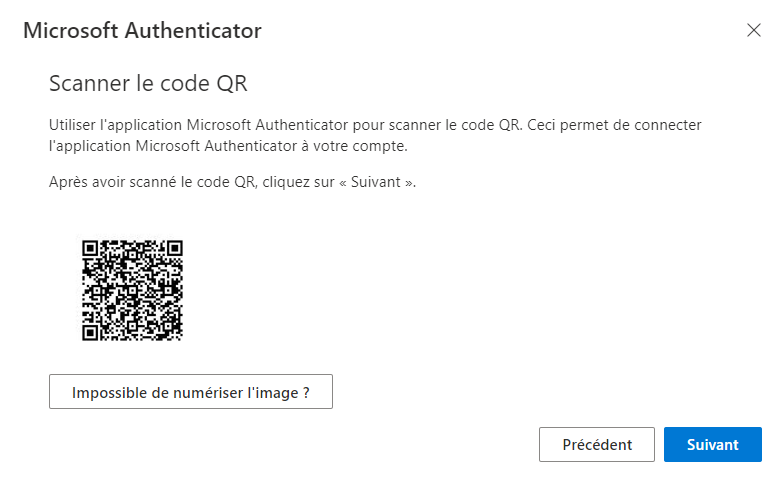
3. A QR Code is issued by Microsoft
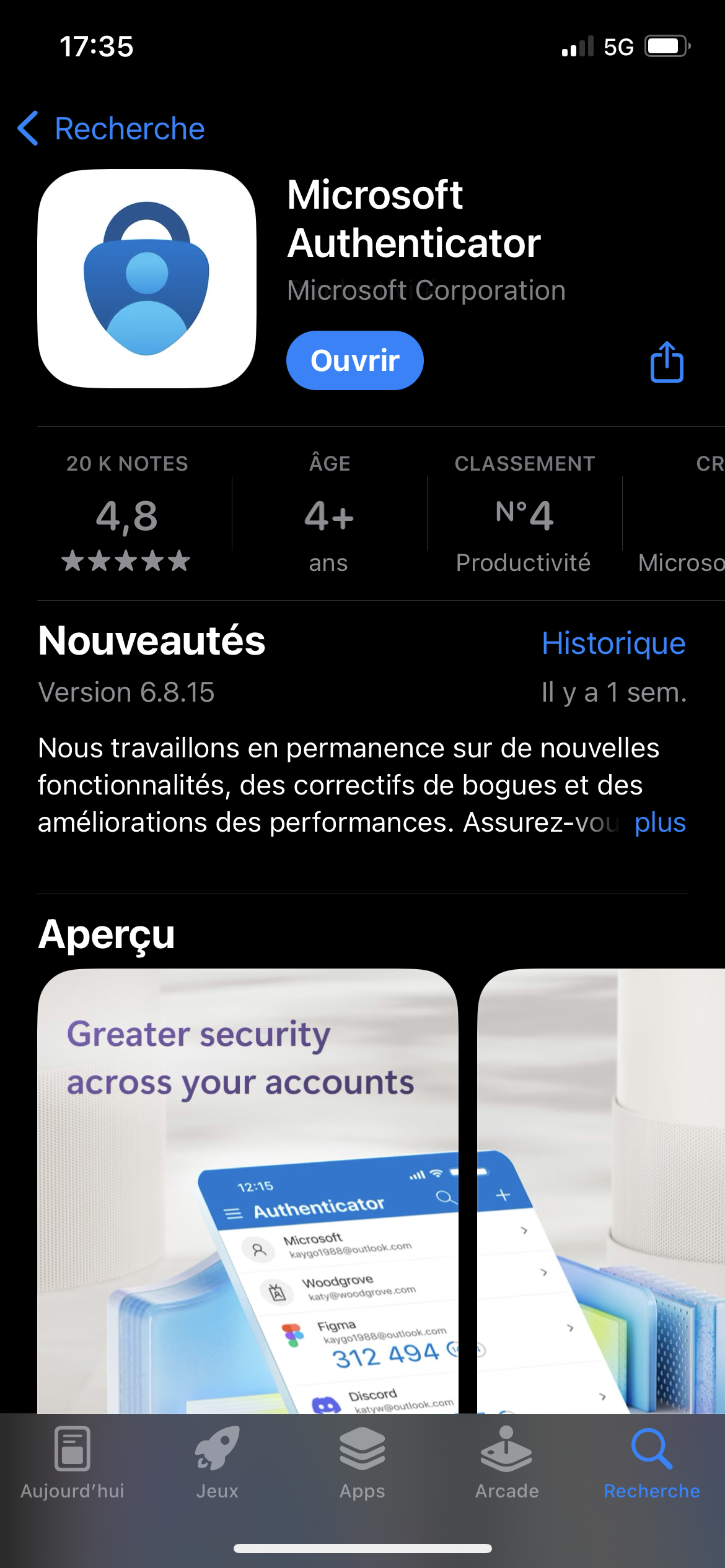
4. Take your cell phone and choose Microsoft Authenticator via Google Play (Android) or App Store (IOS)
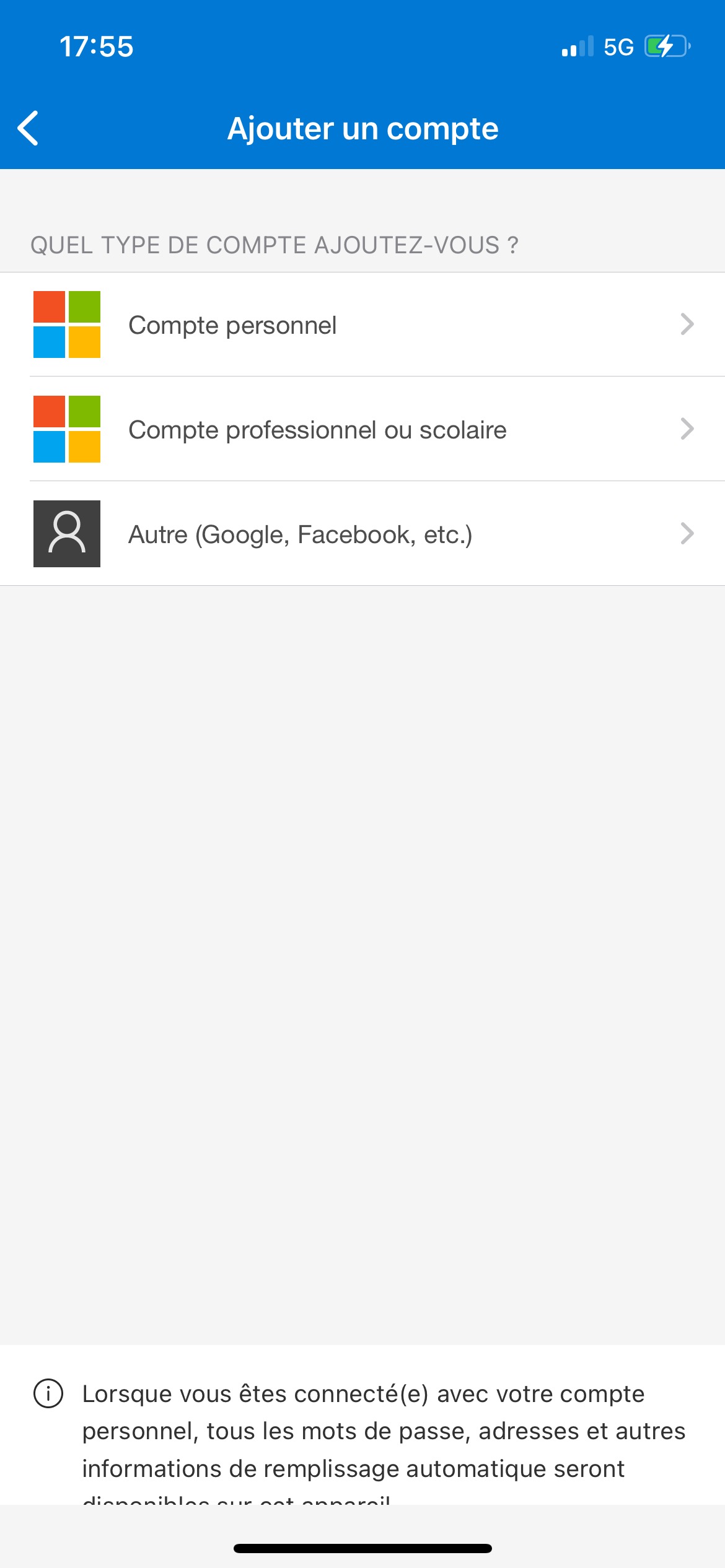
6. Choose Professional or School Account
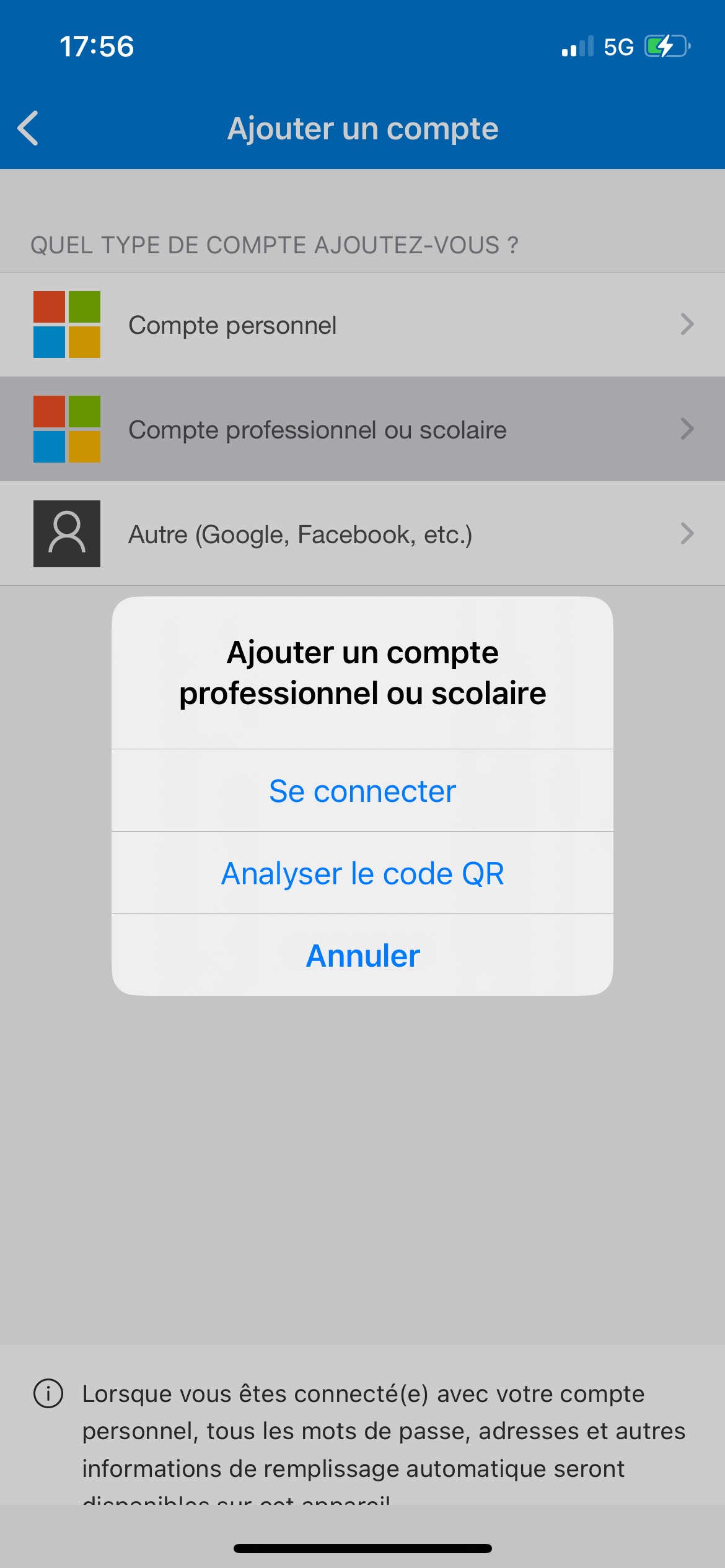
7. Scan the QR Code from step 3
8. Successful stage 3
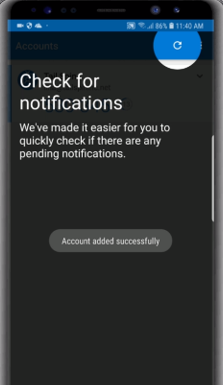
Once the account has been added, select “OK”.
9. A code is now displayed
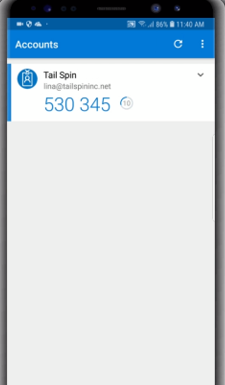
10. Return to your computer and click on “Next”.
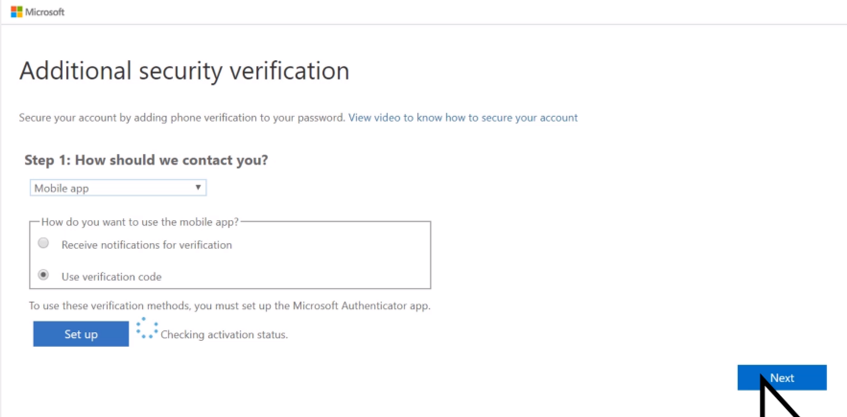
11. Enter the code displayed on the Microsoft Authenticator application
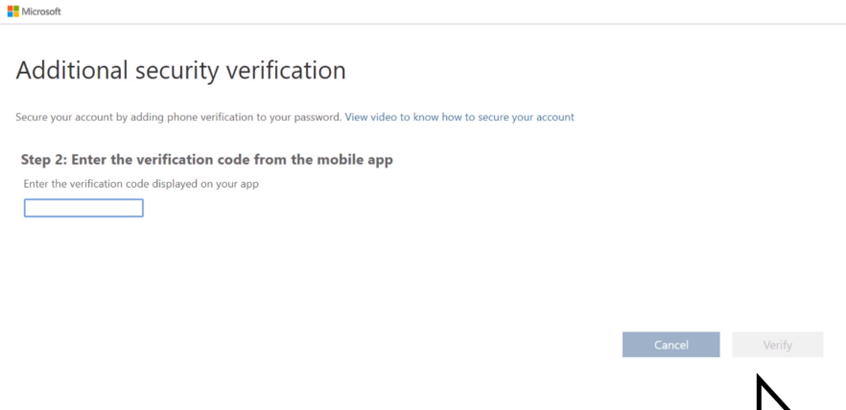
12. Enter cell phone number
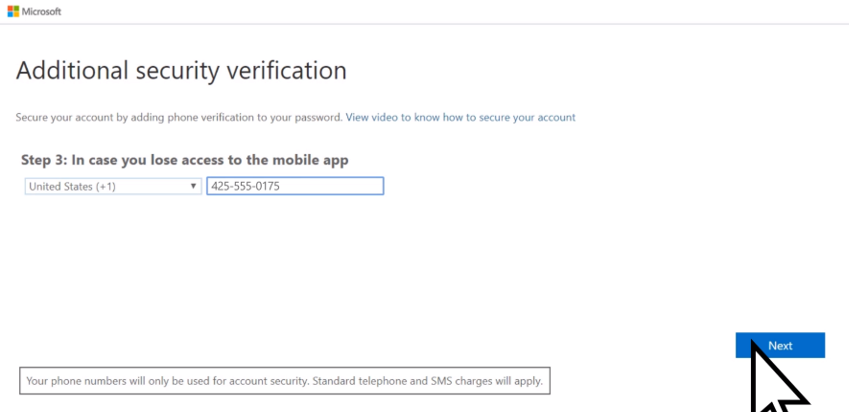
The phone is now linked to your user. All access requests for applications protected by Microsoft 365, will arrive on your phone.