
Cette publication est également disponible en :
 Français (French)
Overview
Zimlet OpenPGP enables Zimbra webmail to encrypt and sign e-mail messages.
OpenPGP encryption prevents your messages from being opened by anyone other than the intended recipient. This will prevent your message from being altered or changed by anyone other than yourself, preserving the authenticity of your content.
- What is a Zimlet? – Zimlets are add-on features for your Zimbra e-mail client that can be found in your Zimbra Preferences tab under “Zimlets”. They enhance the functionality of your Zimbra client.
- What is PGP/OpenPGP? – PGP stands for Pretty GoodPrivacy. It is an encryption method shared between two people who have exchanged public and private keys. OpenPGP is a PGP standard based on PGP version 5.x+ security software.
- What is a public/private key? – Public and private keys are two unique cryptographic keys that work together to encrypt and decrypt information, in this case plain text.
Your public key can be shared with others, while your private key remains secret to you and your Zimbra OpenPGP Zimlet!
- Which e-mail applications support encryption? Most modern e-mail and webmail applications can support PGP key encryption technology, including Zimbra webmail, Microsoft Outlook, Thunderbird and others.
How does it work?
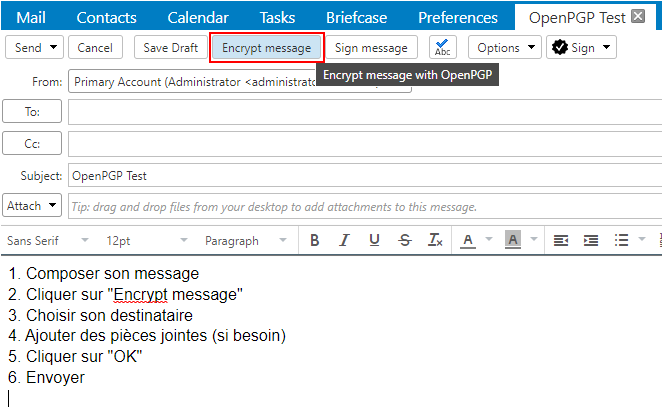
By creating an encrypted message with OpenPGP Zimlet, only recipients with a corresponding private key can decrypt and read your e-mail. OpenPGP Zimlet makes this process as simple as clicking a few buttons. After composing your e-mail, you can click on the “Encrypt message” option.
only the plain text of the message body is encrypted. This Zimlet automatically converts messages to plain text when you click on “Encrypt message”.

Zimlet OpenPGP Configuration Guide
1. Open your Zimbra Preferences.

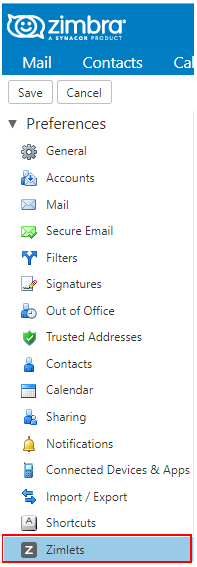
2. Navigate to “Zimlets”.
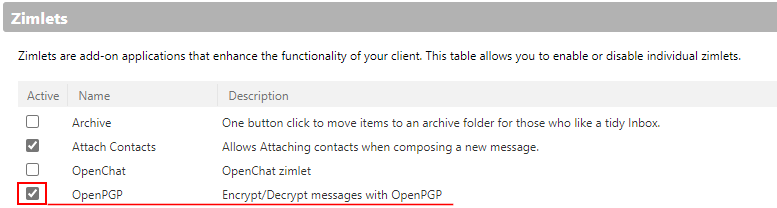
3. Check the “OpenPGP” box.
4. Return to your “Mail” tab and expand the “Zimlets” options to find “OpenPGP”.
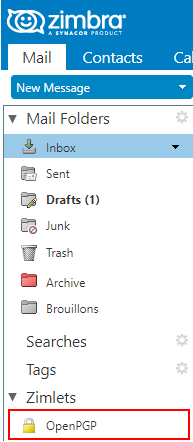
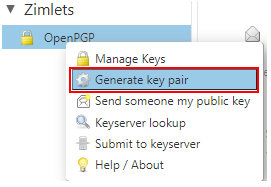
5. Right-click on OpenPGP and select “Generate key pair”.
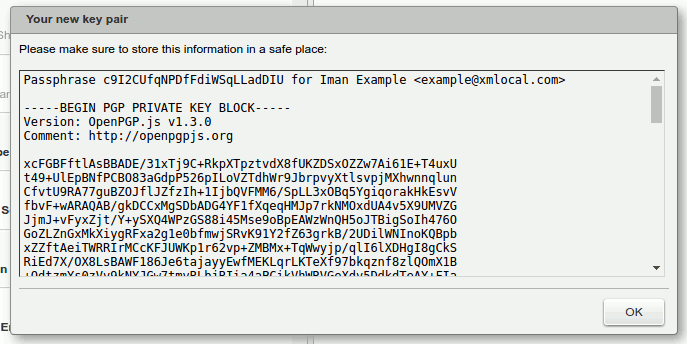
6. After generating your key pair, it will look like the message below:
How to send and receive public keys
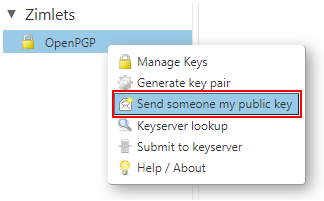
1. To send a public key, simply right-click on the OpenPGP zimlet under the “Zimlets” windows and select “Send my public key to someone”.
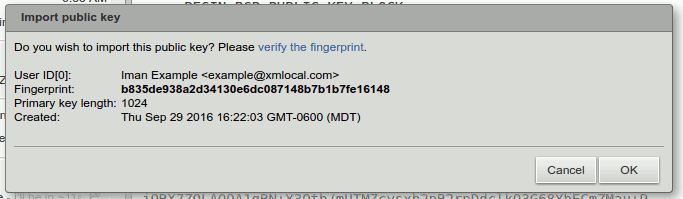
2. To receive a public key from someone, they’ll usually have to send you their key. You’ll receive an e-mail with a message similar to the image below:
Automatic decryption
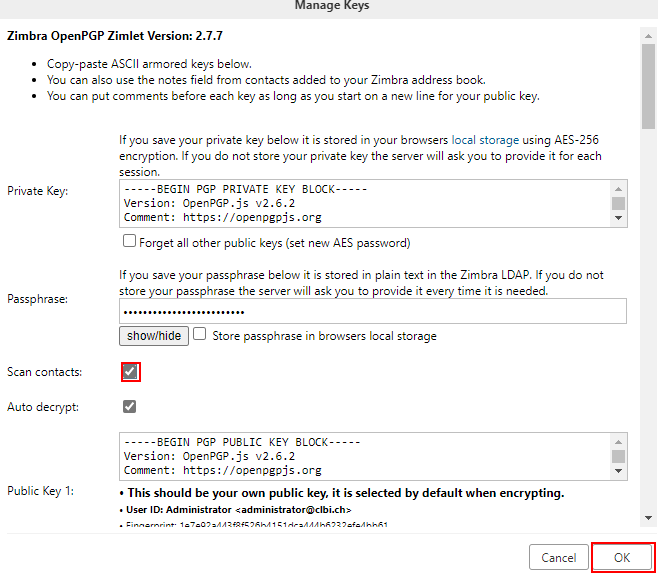
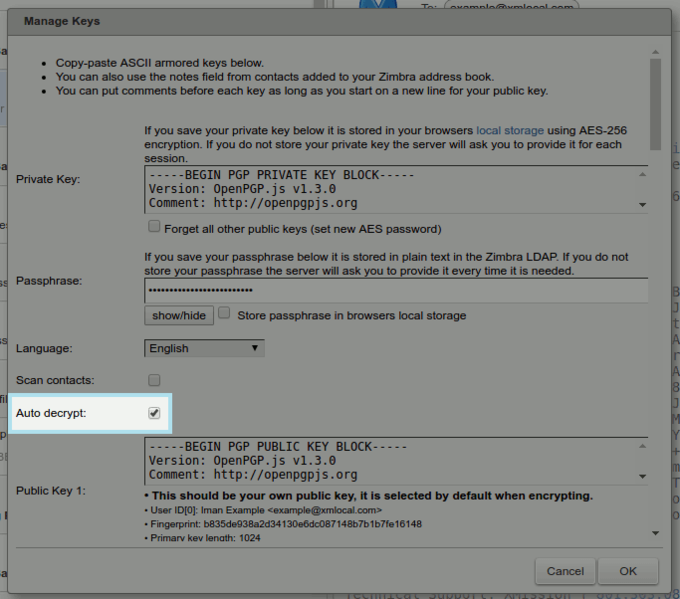
You can enable/disable the “Automatic decryption” option in the “Manage keys” menu.
How to send encrypted messages with OpenPGP
. Compose the body of your message, then click on “Encrypt message”.
All messages must be formatted as plain text.
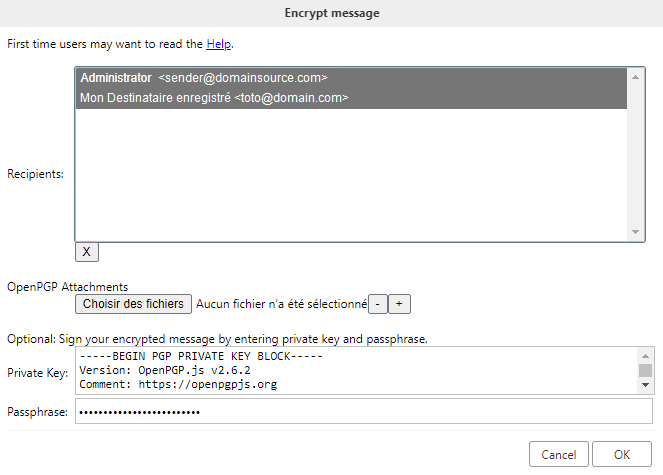
2. Once you’ve finished and clicked on “Encrypt message”, you’ll receive a confirmation window.
If you’re sending to several recipients, you’ll need to use CTRL + left-click to select multiple addresses. Use CMD + click on Mac.
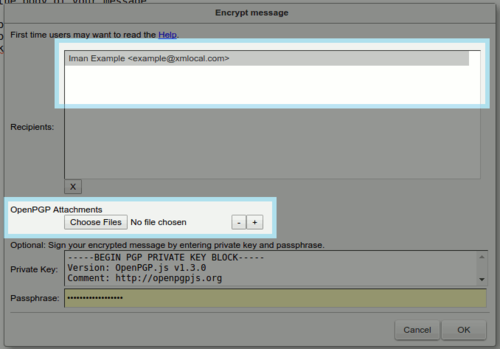

It’s important to add your attachments during this screen, otherwise they won’t be encrypted.
3. The body of your message will be encrypted and base64 encoded. You can now send the message to the desired recipients.
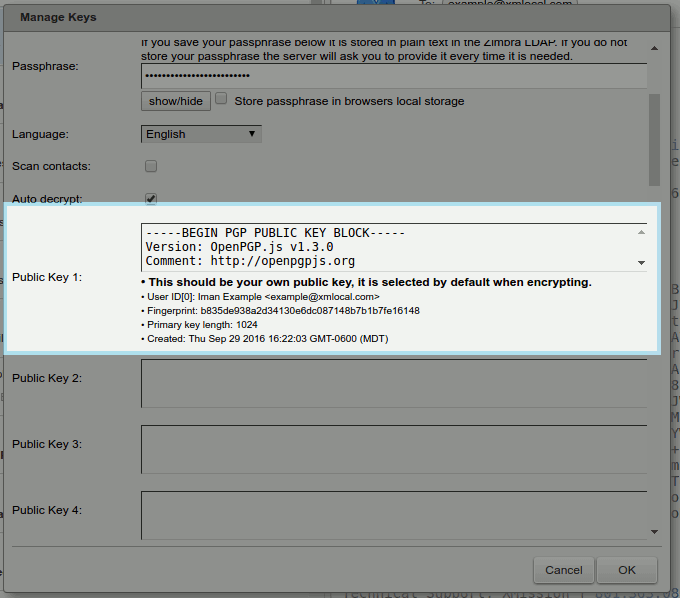
Managing your contacts Public keys
When you accept public keys, OpenPGP Zimlet automatically adds them to your “Managed keys” in the “Public keys” section. This is unique to the user who sent them.
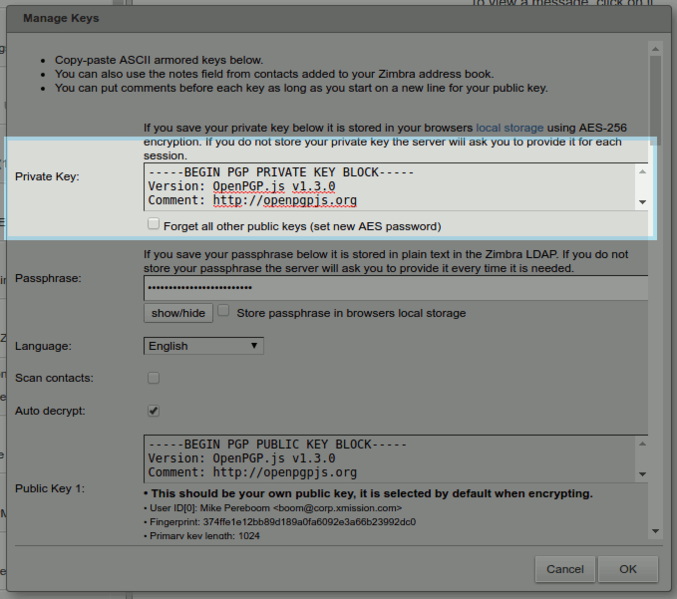
Importing your own PGP private key into OpenPGP
If you already have your own PGP private key, you can simply paste it into the Private Key field inside the “Manage Keys” section of the OpenPGP zimlet.
Supported OpenPGP formats
Sending messages
- Inline-PGP encrypted messages with full UTF-8 support in plain text format
- Inline-PGP clear-signed messages with full UTF-8 support in plain text format
- Inline-PGP encrypted attachments
Receiving messages
- Inline-PGP encrypted messages with full UTF-8 support in plain text format
- Inline-PGP clear-signed messages with full UTF-8 support in plain text format
- Inline-PGP encrypted attachments
- PGP/MIME messages with text/plain body parts
- PGP/MIME messages with text/html body parts will be converted to text.
- PGP/MIME messages with parts using base64 and quoted-printable transfer coding and UTF-8 charset
- PGP/MIME encrypted attachments
About private key security
It’s important to keep your private key safe when using public-key cryptography methods such as PGP. Under no circumstances should you share your private key with anyone.
That said, please note that Zimlet OpenPGP does NOT store your private key on our servers. If you choose to “store” your private key, it will be stored in your browser, not on our servers. It is stored with AES-256 encryption. If you choose to store the secret phrase on your key, this secret phrase can be stored either on our servers or in your browser’s local storage. If you store your passphrase, it is potentially possible for someone with access to your computer to obtain your unencrypted private key.
You can also choose not to store anything, by manually supplying your private key and passphrase each time you need to sign or encrypt a message.
We recommend that you store your key, but not your secret phrase, in your browser. This offers a good balance between security and convenience.
Zimbra Office
For those using the Zimbra Desktop application, this Zimlet is not compatible for installation. You will need to connect to your webmail to use this Zimlet.
Public key storage for Zimbra contacts
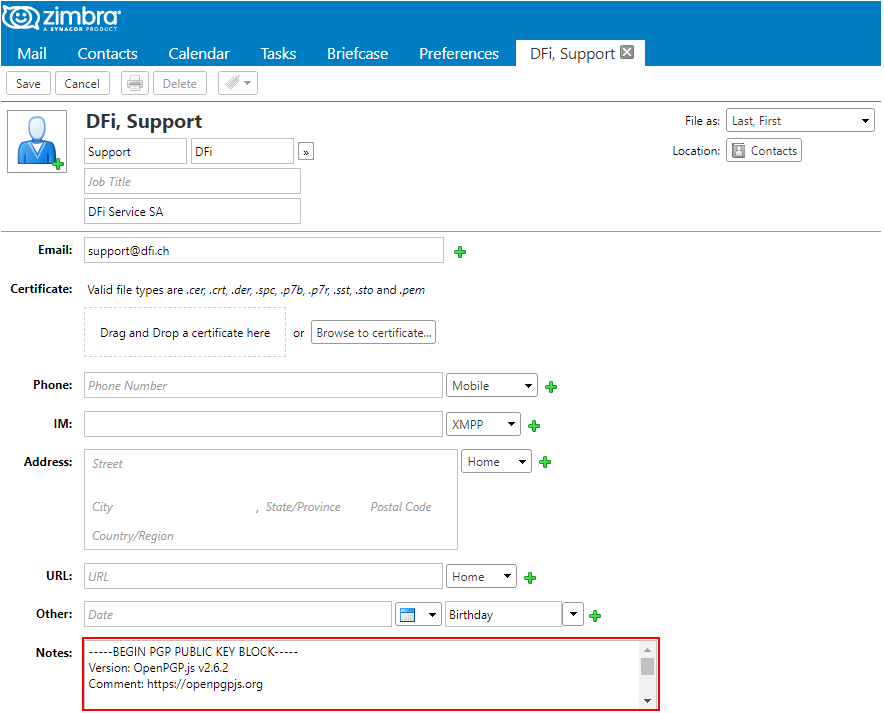
As an option, you can store public keys in Contacts, the Zimbra address book. First activate the Scan contacts option, then copy/paste the public keys into the notes field of your contacts.