

Cette publication est également disponible en :
 Français (French)
How do I create a Cron Job?
You can do great things with Cron stains:
- Back up your databases automatically
- Generate your statistics and send them to you in PDF format by e-mail
- Clean up your forum every day at a specific time
- etc.
In general, you’ll be able to schedule repeated tasks on your hosting with scripts.
When you log in to your CPanel, you should find this at the bottom of the “Advanced” panel
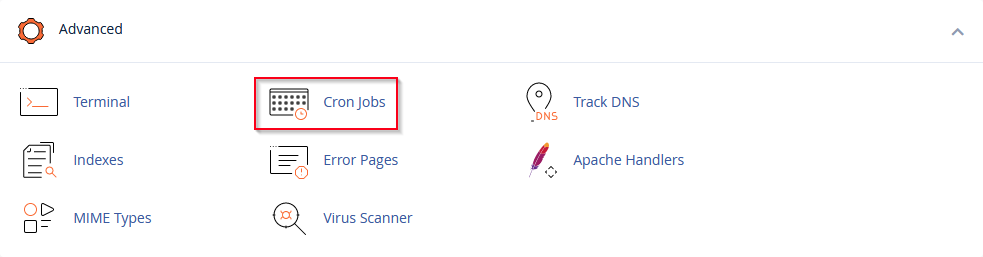
You will be taken to the main Cron interface as shown below:
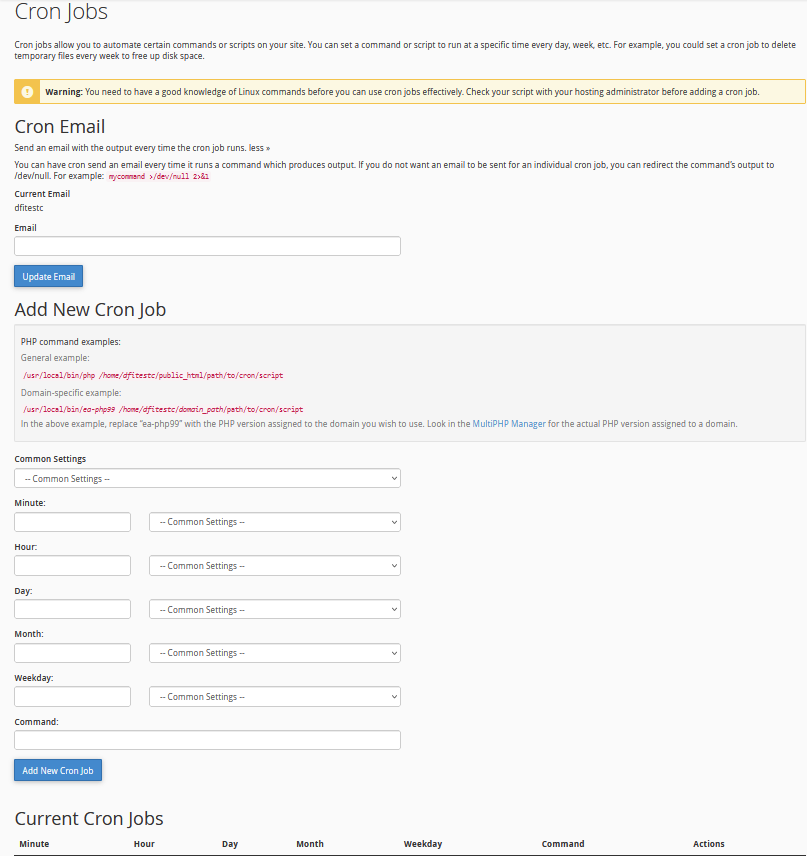
Add a notification email
The Cron Email section of the interface lets you enter an e-mail address in the system to send notifications when your cron tasks are executed. To define an e-mail address, proceed as follows:
- In the text field: Email, enter the email address to which you wish to receive notifications.

- Click on .

Add a cron job
To create a cron job, perform the following steps:
- Select the frequency at which you wish to run the cron job from the appropriate menus, or enter values in the text boxes.

- Common settings – This menu allows you to select a commonly used interval. The system allows you to configure the appropriate parameters, minute, hour, day, month, and days of the week in the text fields for you.
| Please note:If wildcards ( * ) and ranges confuse you, this menu is a great way to learn how to configure fields. |
- Minute – Use this menu to select the number of minutes between each cron job run, or the minute of each hour at which you wish to run the cron job.
- Hour – Use this menu to select the number of hours between each time the cron job runs, or the time of day you wish to run the cron job.
- Day – Use this menu to select the number of days between each cron job run, or the day of the month on which you wish to run the cron job.
- Month – Use this menu to select the number of months between each time the cron job runs, or the month of the year in which you wish to run the cron job.
- Weekday – Use this menu to select the days of the week on which you wish to run the cron job.
- In the “command” field, enter the command you want the system to execute.
| notes:Enter the absolute path to the command you wish to execute. For example, if you wish to run the public_html/index.php file in your home directory, enter the following command: /home/user/public_html/index.php To disable notifications for a specific cron job, add the following line to the command: > / Dev / null 2> & 1 |
Important information:
- You must specify parameters for minute, hour, day, month, Weekday and command text fields.
-
-
- The interface displays a green tick icon (
 ) next to each parameter you have set correctly.
 - If you enter or select an invalid parameter, the interface displays a red warning icon ( ) next to it.
- The interface displays a green tick icon (
-
 ) next to each parameter you have set correctly.
 ) next to it.
- Be extremely careful when using the “rm” command in a cron job. If you don’t declare the right options, you could delete the data from your directory.
- Click on Add Cron Job.
Show existing cron jobs
The actual Cron Jobs table displays your existing cron jobs.
Modifying a cron job
To modify a cron job, perform the following steps:
- Locate the cron job you wish to modify and click on Modify.
- Modify the parameters you wish to change and click on Modify line.
Delete a cron job
To delete a cron job, perform the following steps:
- Click Delete next to the cron job you wish to delete.
- Click on Delete.