

Cette publication est également disponible en :
 Français (French)
Prerequisites
Before you start, make sure you :
- Have an up-to-date FortiClient installed on your Windows 11 PC.
- Your VPN credentials (username and password supplied by your company).
- Know the VPN server address (provided by your administrator).
- Have the VPN configuration file available if your company provides an import file (optional).
Manual configuration of IPSec VPN
Step 1: Open FortiClient
- Click on the Start menu.
- Search for FortiClient and open the application.
Step 2: Access the VPN section
- In FortiClient, click on the 3 horizontal lines.
- Click on Add a new connection.
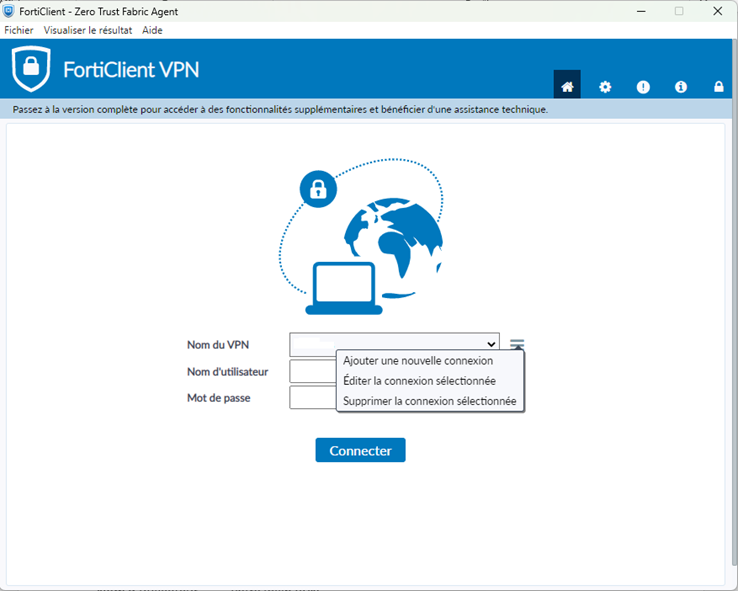
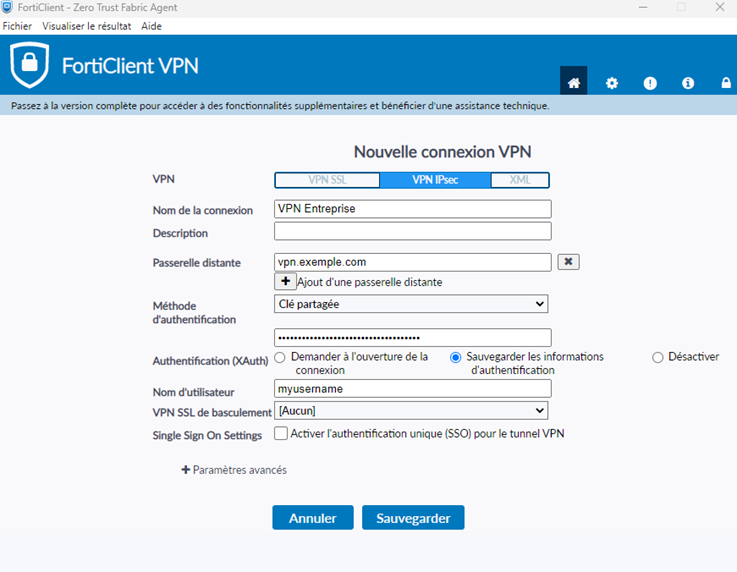
Step 3: Fill in VPN information
| Field | Example of values |
| Connection name | VPN Enterprise |
| VPN type | IPsec VPN |
| Server address | vpn.example.com |
| User name | your VPN login |
| Password | your VPN password |
| Pre-shared key | supplied by the company |
?? If some advanced fields are not provided by the company, leave the default values.
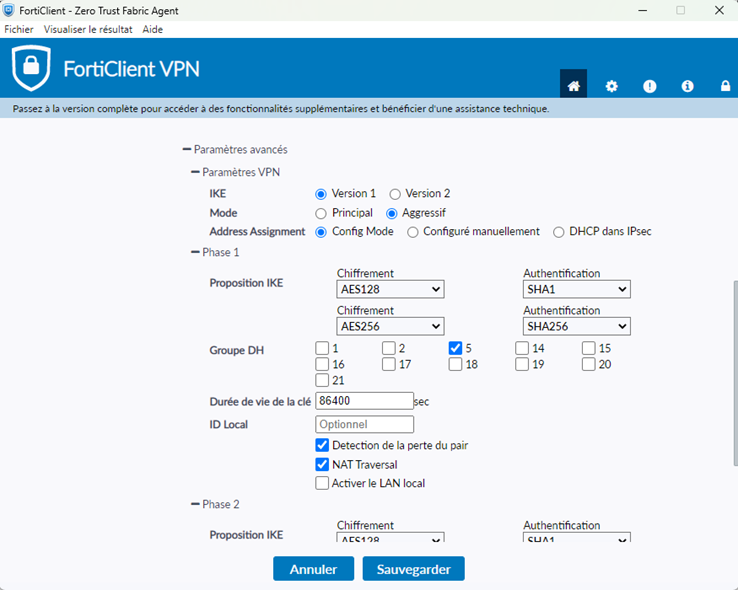
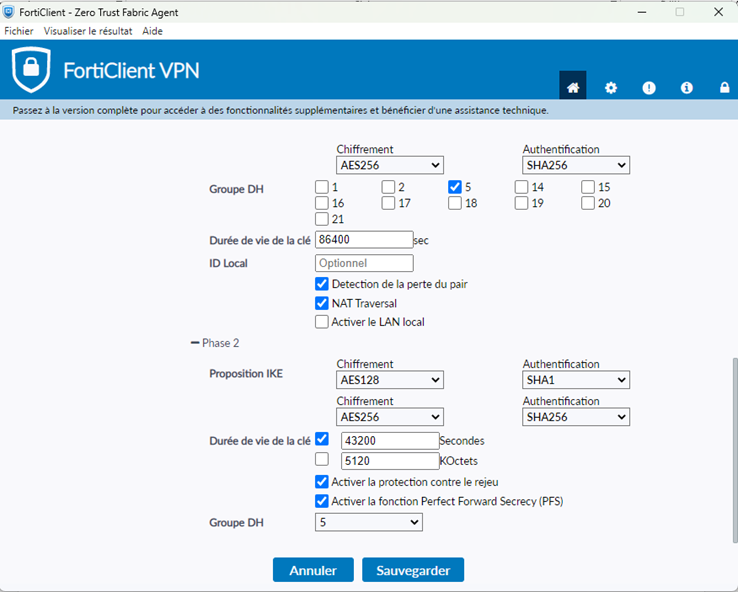
Step 4: Save configuration
- Click on Save.
- The VPN connection now appears in the list of available connections.
Step 5: Connect to the VPN
- Select your VPN connection.
- Click on Connect.
- Enter your password if requested. Your company may have a two-factor authentication system that you’ll need to go through.
- A notification will confirm that the VPN is active.
Configuration by importing a VPN file
Step 1: Get the configuration file
- The file is usually supplied by the IT team with an extension such as .fctvpn or .xml.
Step 2: Import the file
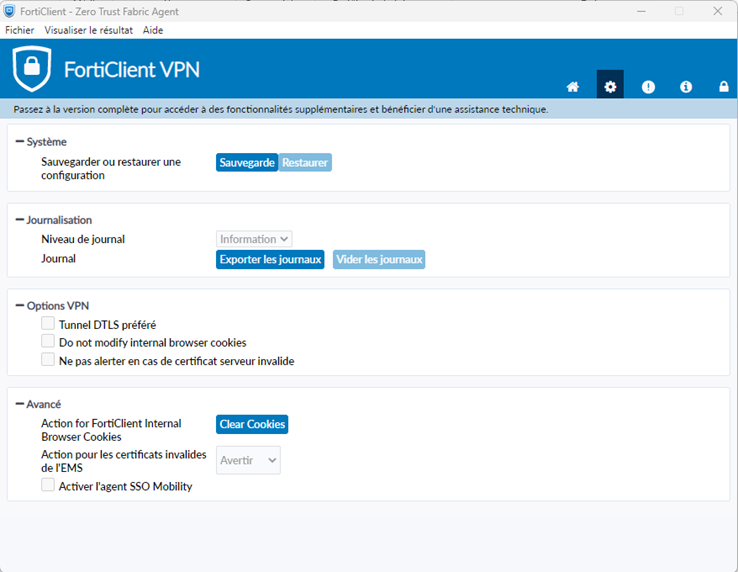
- In FortiClient, go to Settings.
- Click on Restore (in System).
- Select the supplied file.
- Check that the connection appears in the list.
Step 3: Login
- Select the imported connection.
- Click on Connect.
- Enter your password if necessary.
- The VPN connection is now active.
Tips and best practices
- Always use the latest version of FortiClient.
- Never share your VPN password.
- Disconnect from the VPN when you no longer need it.
- If the VPN does not work :
- Check your Internet connection.
- Check your login details.
- Contact IT support with the exact error message.